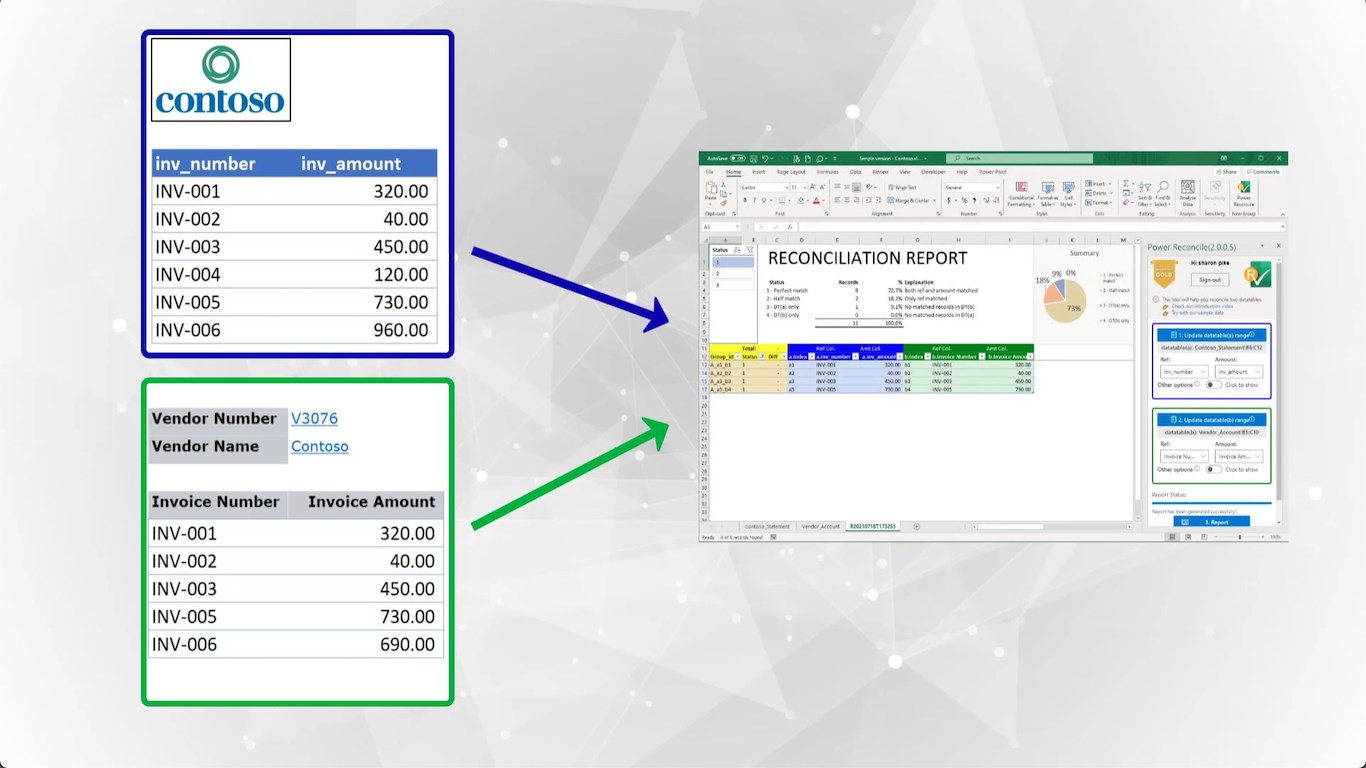
What does it mean to reconcile two spreadsheets?
Reconciling two spreadsheets means comparing data from two different sources to make sure they agree. You have two lists of transactions — maybe a bank statement and a general ledger, or an invoice register and a payment log — and you need to confirm that every item in one list has a matching item in the other.
The goal is to answer three questions: Which items match perfectly? Which items match on reference but differ in amount? And which items exist in only one of the two data sets?
This process is fundamental to accounting (bank reconciliation, accounts receivable, intercompany balancing), but it applies to any scenario where you need to compare two lists: inventory counts, employee records, vendor invoices, insurance claims, or even student enrollment across two systems.
Before you start: prepare your data
Good reconciliation starts with clean data. Before you try any matching method, take five minutes to prepare both spreadsheets:
- Put both data sets in the same workbook. Each data set should be on its own worksheet (Sheet1 and Sheet2), or in clearly separated ranges on the same sheet.
- Ensure each sheet has a header row. Column headers like "Transaction ID," "Amount," "Date," and "Description" help you identify which columns to match on.
- Identify your reference column. This is the field that uniquely identifies each transaction in both data sets — a check number, invoice ID, transaction reference, VIN, or any consistent identifier.
- Verify amount columns are numeric. Numbers stored as text (common in CSV imports) will cause formulas to fail silently. Select the column, check the format, and convert if needed.
- Remove blank rows. Blank rows inside your data range can break VLOOKUP and complicate automated tools. Delete any empty rows within the data.
Method 1: VLOOKUP (manual, formula-based)
VLOOKUP is the most common manual approach. It looks up a value from one sheet in another sheet and returns a corresponding value. Here is how to use it for reconciliation:
Step 1: Look up the reference in the other sheet
In Sheet1, add a new column called "Lookup." In the first data row, enter:
=IFERROR(VLOOKUP(A2, Sheet2!A:C, 2, FALSE), "NOT FOUND")
This looks up the value in cell A2 (your reference column) in Sheet2, and returns the value from the second column. If no match is found, it shows "NOT FOUND" instead of an error.
Step 2: Compare amounts
Add another column to calculate the difference between the amounts in Sheet1 and the looked-up amounts from Sheet2:
=IF(D2="NOT FOUND", "No match", B2 - D2)
A result of 0 means the amounts match. Any other number shows the exact difference.
Step 3: Check the other direction
Repeat the same VLOOKUP process on Sheet2, looking up values in Sheet1. This catches items that exist in Sheet2 but not in Sheet1 — the previous lookup only checked one direction.
Limitations of VLOOKUP for reconciliation
- Duplicates: VLOOKUP always returns the first match. If invoice #1001 appears three times in your data, VLOOKUP matches the first one every time — the other two are silently ignored.
- One direction at a time: You need to build formulas on both sheets, then manually consolidate the results.
- Fragile: If your data structure changes (columns inserted, rows added), VLOOKUP formulas break and need rebuilding.
- No split transactions: If one payment covers three invoices, VLOOKUP cannot group them.
- No report: You get raw formula output. Organizing results into a shareable, auditable report requires additional manual work.
For a deeper comparison, see Power Reconcile vs VLOOKUP.
Method 2: Conditional formatting (visual comparison)
Conditional formatting highlights cells that match or differ between two ranges. It is useful for visual comparison but does not produce a report.
How to set it up
- Select the reference column in Sheet1.
- Go to Home → Conditional Formatting → New Rule → Use a formula.
- Enter:
=COUNTIF(Sheet2!A:A, A1)=0 - Choose a highlight color (e.g., red). This highlights items in Sheet1 that do not appear in Sheet2.
- Repeat in the other direction on Sheet2.
Limitations of conditional formatting
- Visual only — no output you can share, export, or audit.
- Slows down significantly with large data sets (5,000+ rows).
- COUNTIF counts occurrences, not one-to-one matches — so duplicates are still problematic.
- Does not show the amount difference for partial matches.
- You still need to scan every highlighted row manually to understand the discrepancy.
Method 3: Pivot tables (summary-level comparison)
Pivot tables can summarize and compare totals across two data sets. They are useful when you need to reconcile at a summary level (total by category, total by account) rather than transaction by transaction.
How to use pivot tables for reconciliation
- Add a "Source" column to each data set (e.g., "Bank" and "Ledger").
- Combine both data sets into one table.
- Create a pivot table with your reference field as rows, "Source" as columns, and amount as values.
- Add a calculated field for the difference between the two sources.
When pivot tables work well
Pivot tables are effective when you need summary reconciliation — comparing totals by account, department, or category. They answer "do the totals agree?" but not "which specific transactions don't match?"
For transaction-level reconciliation (matching individual rows), pivot tables add setup complexity without solving the core problem of one-to-one matching.
Method 4: Automated reconciliation with Power Reconcile
Power Reconcile is an Excel add-in that replaces the manual formula approach with automated matching. It handles all the limitations of VLOOKUP, conditional formatting, and pivot tables in a single workflow.
Step 1: Select your two data ranges
Open your workbook with both data sets. In the Power Reconcile panel, select the range for each table. The add-in creates DataTables from your selections — it reads the headers and data automatically.
Step 2: Choose your matching columns
Select the reference column (transaction ID, invoice number, check number) and the amount column from each table. Optionally include additional columns (date, description, category) that you want in the reconciliation report.
Step 3: Generate the report
Click "Generate Report." Power Reconcile matches every row across both tables using one-to-one matching and produces a reconciliation report in a new worksheet with four categories:
- Perfect matches: Reference and amount match exactly.
- Value differences: Reference matches but amount differs. The exact difference is shown.
- Only in Table A: Items in the first data set with no match in the second.
- Only in Table B: Items in the second data set with no match in the first.
Step 4: Handle exceptions with manual reconciliation
For items that could not be auto-matched — split transactions, combined payments, or items with different reference formats — open the Manual Reconciliation dialog. Filter and search across both tables, select rows from each side, and match them manually. You can also break and regroup partially matched items.
Step 5: Refresh when data changes
When your source data changes (new transactions added, corrections made), click "Refresh Reconciliation" to re-run the matching with the same configuration. No need to re-select ranges or columns.
Power Reconcile handles 10,000+ rows in under a minute. Manual methods typically take 30-60 minutes for the same data set — and miss duplicates.
Which method should you use?
The right method depends on your data size, frequency, and complexity:
- Under 50 rows, one-time: VLOOKUP or conditional formatting. Manual methods are fine for small, simple comparisons.
- 100-500 rows, occasional: VLOOKUP works but gets tedious. Consider Power Reconcile if you need to handle duplicates or produce a report.
- 500+ rows, regular (weekly/monthly): Use Power Reconcile. The time savings compound — a 10-minute reconciliation instead of 60 minutes, every month, adds up to hours per year.
- Any size with split transactions or netting: Use Power Reconcile. Manual methods cannot handle multi-item matching.
- Summary-level comparison: Pivot tables work well when you only need to compare totals by category, not individual transactions.
Common pitfalls when reconciling spreadsheets
- Ignoring duplicates: If the same reference appears multiple times, VLOOKUP silently matches the first one every time. This is the single most common source of reconciliation errors.
- Only checking one direction: Looking up Sheet1 values in Sheet2 finds items missing from Sheet2, but not items missing from Sheet1. Always reconcile both directions.
- Numbers stored as text: CSV imports often store numbers as text. VLOOKUP treats "1000" (text) and 1000 (number) as different values. Convert to numbers before matching.
- Leading/trailing spaces: Invisible spaces in reference fields cause matches to fail. Use TRIM() to clean your data before reconciling.
- Assuming the formula is right: A VLOOKUP that returns a value does not mean the match is correct. With duplicates, the first match is returned regardless of whether it is the right match.
Real-world example: reconciling an invoice register with payment records
Imagine you are a controller at a mid-size company. Your accounts payable team maintains an invoice register in Excel with 3,000 invoices. Your bank provides a monthly statement with 2,800 payment transactions. You need to confirm that every invoice was paid and every payment corresponds to a valid invoice.
The manual approach: You build VLOOKUP formulas in both sheets, copy them down 3,000 rows, filter for errors, and manually scan the results. Some invoices were paid in two installments (split payments), which VLOOKUP cannot detect. The process takes 45 minutes, and you are not confident about the duplicate invoices.
With Power Reconcile: You select both data ranges, choose the invoice number as the reference column and the amount column for comparison. In under a minute, you have a report showing 2,650 perfect matches, 45 value differences (with exact amounts), 305 invoices with no payment, and 105 payments with no invoice. For the split payments, you open the manual reconciliation dialog, group the installments, and match them against the full invoice. Total time: 5 minutes.
Tips for faster reconciliation
- Standardize reference formats before matching. If one system stores "INV-001" and another stores "001," they will not match. Clean up formats before you start.
- Use the most specific reference available. A transaction ID is better than a date + amount combination. Unique identifiers produce cleaner matches.
- Reconcile frequently. Monthly reconciliation with 500 transactions is faster and easier than quarterly reconciliation with 1,500. Smaller batches mean fewer exceptions.
- Document your exceptions. When you find a discrepancy, note why it happened. This helps you build institutional knowledge and catch systematic issues.
- Automate what you repeat. If you reconcile the same data sources every month, investing in an automated tool pays for itself in the first use.